<?xml version="1.0" encoding="utf-8"?>
<feed xmlns="http://www.w3.org/2005/Atom">
  <author>
    <name>Polarisiu</name>
  </author>
  <generator uri="https://hexo.io/">Hexo</generator>
  <id>https://your-domain.com/</id>
  <link href="https://your-domain.com/" rel="alternate"/>
  <link href="https://your-domain.com/atom.xml" rel="self"/>
  <rights>All rights reserved 2026, Polarisiu</rights>
  <subtitle>热爱可抵岁月漫长|温柔可挡艰难时光</subtitle>
  <title>Polarisiu</title>
  <updated>2026-03-18T04:51:17.075Z</updated>
  <entry>
    <author>
      <name>Polarisiu</name>
    </author>
    <category term="运维工具" scheme="https://your-domain.com/categories/%E8%BF%90%E7%BB%B4%E5%B7%A5%E5%85%B7/"/>
    <category term="Linux运维" scheme="https://your-domain.com/tags/Linux%E8%BF%90%E7%BB%B4/"/>
    <category term="VPS工具箱" scheme="https://your-domain.com/tags/VPS%E5%B7%A5%E5%85%B7%E7%AE%B1/"/>
    <category term="Docker管理" scheme="https://your-domain.com/tags/Docker%E7%AE%A1%E7%90%86/"/>
    <category term="一键脚本" scheme="https://your-domain.com/tags/%E4%B8%80%E9%94%AE%E8%84%9A%E6%9C%AC/"/>
    <content>
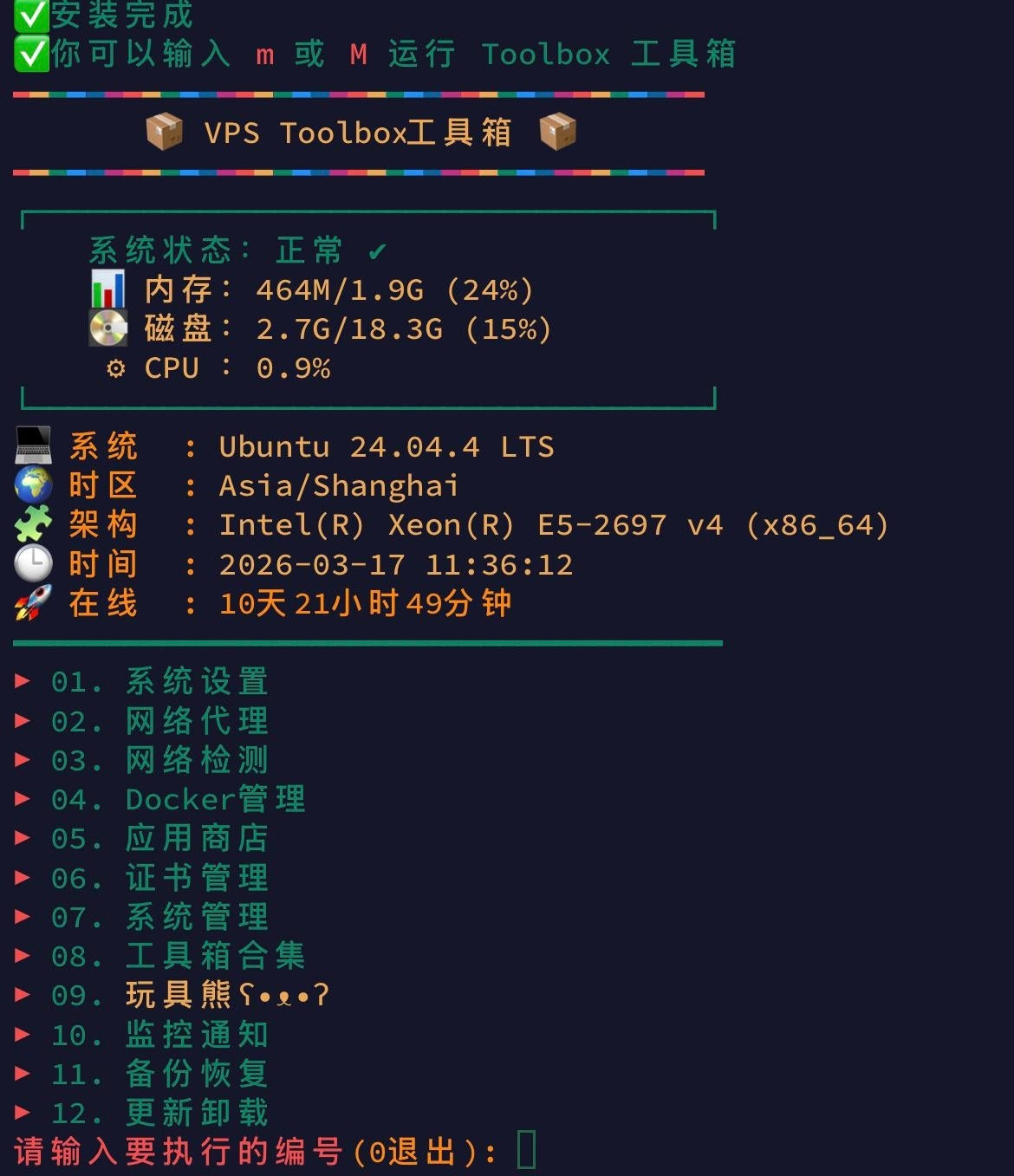
      <![CDATA[<h1 id="🚀-VPS-Toolbox：让-Linux-运维回归简单"><a href="#🚀-VPS-Toolbox：让-Linux-运维回归简单" class="headerlink" title="🚀 VPS Toolbox：让 Linux 运维回归简单"></a>🚀 VPS Toolbox：让 Linux 运维回归简单</h1><p>如果你厌倦了每次配置新服务器都要重复搜索“如何安装 Docker”、“如何开启 BBR”或“如何申请 SSL 证书”，那么 <strong>VPS Toolbox</strong> 就是为你量身定制的。</p><p>它不是一个单一的功能脚本，而是一个<strong>交互式运维终端</strong>。只需通过简单的数字选择，就能完成 80% 的日常运维任务。</p><hr><h2 id="📸-功能一览：所见即所得"><a href="#📸-功能一览：所见即所得" class="headerlink" title="📸 功能一览：所见即所得"></a>📸 功能一览：所见即所得</h2><h3 id="交互式主菜单"><a href="#交互式主菜单" class="headerlink" title="交互式主菜单"></a>交互式主菜单</h3><p>工具箱采用了极简的中文交互界面，逻辑清晰，即便是第一次接触 Linux 的小白也能快速上手。</p><p><img src="https://pic.sl.al/gdrive/pic/2026-03-18/fileid_1U0EndxeJV88lY8JtdzdCqGneW55EZkWa_0910ADF9DEF7863CD987AFF490314223.jpg" alt="VPS Toolbox 菜单演示"></p><hr><h2 id="⚡-快速部署：两行命令搞定"><a href="#⚡-快速部署：两行命令搞定" class="headerlink" title="⚡ 快速部署：两行命令搞定"></a>⚡ 快速部署：两行命令搞定</h2><p>在使用工具箱之前，请确保你的系统已安装 <code>curl</code>。</p><h3 id="1️⃣-环境准备（以-Debian-Ubuntu-为例）"><a href="#1️⃣-环境准备（以-Debian-Ubuntu-为例）" class="headerlink" title="1️⃣ 环境准备（以 Debian&#x2F;Ubuntu 为例）"></a>1️⃣ 环境准备（以 Debian&#x2F;Ubuntu 为例）</h3><figure class="highlight bash"><table><tr><td class="gutter"><pre><span class="line">1</span><br></pre></td><td class="code"><pre><span class="line">apt-get update -y &amp;&amp; apt-get install -y curl</span><br></pre></td></tr></table></figure><h3 id="2️⃣-一键开启工具箱"><a href="#2️⃣-一键开启工具箱" class="headerlink" title="2️⃣ 一键开启工具箱"></a>2️⃣ 一键开启工具箱</h3><p>复制并运行以下指令，脚本会自动完成初始化：</p><figure class="highlight bash"><table><tr><td class="gutter"><pre><span class="line">1</span><br></pre></td><td class="code"><pre><span class="line">bash &lt;(curl -fsSL tool.wwwo.eu.cc)</span><br></pre></td></tr></table></figure><hr><h2 id="🧭-核心快捷键：记往这一个就够了"><a href="#🧭-核心快捷键：记往这一个就够了" class="headerlink" title="🧭 核心快捷键：记往这一个就够了"></a>🧭 核心快捷键：记往这一个就够了</h2><p>安装完成后，你不再需要输入长长的路径。在任何目录下，只需输入：</p><ul><li><strong><code>m</code></strong> (小写) 或 <strong><code>M</code></strong> (大写)</li></ul><p>即可瞬间唤醒工具箱。这种“快捷指令”的设计，极大地提升了在 SSH 窗口中的操作流畅度。</p><hr><h2 id="🧩-深度解析：它能为你做什么？"><a href="#🧩-深度解析：它能为你做什么？" class="headerlink" title="🧩 深度解析：它能为你做什么？"></a>🧩 深度解析：它能为你做什么？</h2><p>VPS Toolbox 的强大之处在于它的<strong>全栈覆盖能力</strong>：</p><h3 id="🛠-系统层优化"><a href="#🛠-系统层优化" class="headerlink" title="🛠 系统层优化"></a>🛠 系统层优化</h3><ul><li><strong>Swap 管理</strong>：内存不够？一键创建虚拟内存。</li><li><strong>BBR 加速</strong>：优化网络传输协议，显著提升访问速度。</li><li><strong>时区对齐</strong>：解决日志时间偏差问题的必备操作。</li></ul><h3 id="🐳-Docker-生态管理"><a href="#🐳-Docker-生态管理" class="headerlink" title="🐳 Docker 生态管理"></a>🐳 Docker 生态管理</h3><ul><li><strong>一键环境</strong>：自动安装 Docker 及 Docker Compose。</li><li><strong>容器透视</strong>：图形化展示运行状态，支持快速停止&#x2F;删除。</li></ul><h3 id="🌐-网络与安全"><a href="#🌐-网络与安全" class="headerlink" title="🌐 网络与安全"></a>🌐 网络与安全</h3><ul><li><strong>全能测速</strong>：集成 Speedtest 等多节点测速。</li><li><strong>SSL 盾牌</strong>：通过 Acme 脚本自动申请并续签证书。</li><li><strong>防火墙管理</strong>：简单几步开关端口，保障服务器安全。</li></ul><hr><h2 id="🎯-最佳实践流程"><a href="#🎯-最佳实践流程" class="headerlink" title="🎯 最佳实践流程"></a>🎯 最佳实践流程</h2><ol><li><strong>新机入库</strong>：先用 <code>m</code> 里的“系统优化”跑一遍基础配置。</li><li><strong>环境搭建</strong>：选择“Docker 管理”一键安装容器引擎。</li><li><strong>应用部署</strong>：利用内置的应用商店安装面板或工具。</li><li><strong>定期维护</strong>：输入 <code>m</code> 检查磁盘占用，清理 Docker 虚悬镜像。</li></ol><hr><h2 id="⚠️-贴心提示"><a href="#⚠️-贴心提示" class="headerlink" title="⚠️ 贴心提示"></a>⚠️ 贴心提示</h2><blockquote><ol><li><strong>权限要求</strong>：请务必在 <strong>root</strong> 用户下运行，否则部分修改系统配置的功能会失效。</li><li><strong>数据备份</strong>：虽然工具箱很稳，但在进行系统内核修改（如安装 BBR）前，养成快照备份的好习惯准没错。</li><li><strong>退出方式</strong>：在任何菜单界面，输入 <code>0</code> 即可安全退出。</li></ol></blockquote><hr><h2 id="🎉-结语"><a href="#🎉-结语" class="headerlink" title="🎉 结语"></a>🎉 结语</h2><p>VPS Toolbox 真正做到了“复杂的事情简单化”。它将零散的 GitHub 脚本整合进一个统一的入口，是你折腾 VPS 道路上不可或缺的伴侣。</p><p><strong>你会给你的新服务器装上这个“全能助手”吗？</strong> 欢迎在评论区分享你最常用的工具箱功能！</p>]]>
    </content>
    <id>https://your-domain.com/2026/03/17/VPSToolbox%E4%B8%80%E9%94%AE%E6%9C%8D%E5%8A%A1%E5%99%A8%E5%B7%A5%E5%85%B7%E7%AE%B1/</id>
    <link href="https://your-domain.com/2026/03/17/VPSToolbox%E4%B8%80%E9%94%AE%E6%9C%8D%E5%8A%A1%E5%99%A8%E5%B7%A5%E5%85%B7%E7%AE%B1/"/>
    <published>2026-03-17T10:00:00.000Z</published>
    <summary>告别繁琐的命令行！VPS Toolbox 集成系统优化、Docker 管理、网络测速及证书申请，一个“m”键开启全能运维时代。</summary>
    <title>VPS Toolbox 一键服务器工具箱｜Linux 运维的“瑞士军刀”</title>
    <updated>2026-03-18T04:51:17.075Z</updated>
  </entry>
  <entry>
    <author>
      <name>Polarisiu</name>
    </author>
    <category term="VPS" scheme="https://your-domain.com/categories/VPS/"/>
    <category term="网络配置" scheme="https://your-domain.com/categories/VPS/%E7%BD%91%E7%BB%9C%E9%85%8D%E7%BD%AE/"/>
    <category term="ClawVPS" scheme="https://your-domain.com/tags/ClawVPS/"/>
    <category term="DNS" scheme="https://your-domain.com/tags/DNS/"/>
    <category term="阿里云" scheme="https://your-domain.com/tags/%E9%98%BF%E9%87%8C%E4%BA%91/"/>
    <category term="Linux运维" scheme="https://your-domain.com/tags/Linux%E8%BF%90%E7%BB%B4/"/>
    <content>
      <![CDATA[<p>在玩海外 VPS（如 ClawVPS）时，默认的 DNS 往往由机房提供。但在实际使用中，切换到 <strong>阿里云公共 DNS</strong> 往往能获得更稳定的解析速度，特别是在处理国内 API 调用或资源请求时。</p><p>本文将介绍在现代 Linux 系统中（基于 <code>systemd-resolved</code>）修改 DNS 的标准做法。</p><hr><h2 id="🌐-为什么不直接修改-etc-resolv-conf？"><a href="#🌐-为什么不直接修改-etc-resolv-conf？" class="headerlink" title="🌐 为什么不直接修改 &#x2F;etc&#x2F;resolv.conf？"></a>🌐 为什么不直接修改 &#x2F;etc&#x2F;resolv.conf？</h2><p>在现代 Linux 发行版（如 Ubuntu 20.04+、Debian 11+）中，<code>/etc/resolv.conf</code> 只是一个软链接。</p><p>如果你直接修改它，系统重启或网络重启后，你的修改会被自动覆盖。因此，我们需要通过修改 <code>systemd-resolved</code> 的配置文件来从根源解决问题。</p><hr><h2 id="1️⃣-编辑-systemd-resolved-配置文件"><a href="#1️⃣-编辑-systemd-resolved-配置文件" class="headerlink" title="1️⃣ 编辑 systemd-resolved 配置文件"></a>1️⃣ 编辑 systemd-resolved 配置文件</h2><p>使用 root 权限打开配置文件：</p><figure class="highlight bash"><table><tr><td class="gutter"><pre><span class="line">1</span><br></pre></td><td class="code"><pre><span class="line"><span class="built_in">sudo</span> nano /etc/systemd/resolved.conf</span><br></pre></td></tr></table></figure><p>在 <code>[Resolve]</code> 下方取消注释并填入阿里 DNS。这里的 <code>100.100.2.136</code> 是阿里典型的内网&#x2F;公共解析地址，具有极高的稳定性。</p><figure class="highlight text"><table><tr><td class="gutter"><pre><span class="line">1</span><br><span class="line">2</span><br><span class="line">3</span><br><span class="line">4</span><br></pre></td><td class="code"><pre><span class="line">[Resolve]</span><br><span class="line">DNS=100.100.2.136 100.100.2.138</span><br><span class="line">FallbackDNS=223.5.5.5 8.8.8.8</span><br><span class="line">DNSStubListener=yes</span><br></pre></td></tr></table></figure><ul><li><strong>DNS</strong>：首选阿里 DNS。</li><li><strong>FallbackDNS</strong>：备用 DNS，当首选不可用时，系统会尝试阿里公共 DNS (223.5.5.5) 或 Google DNS。</li></ul><hr><h2 id="2️⃣-应用配置并重启服务"><a href="#2️⃣-应用配置并重启服务" class="headerlink" title="2️⃣ 应用配置并重启服务"></a>2️⃣ 应用配置并重启服务</h2><p>修改完配置文件后，需要重启解析服务来应用更改：</p><figure class="highlight bash"><table><tr><td class="gutter"><pre><span class="line">1</span><br><span class="line">2</span><br><span class="line">3</span><br><span class="line">4</span><br><span class="line">5</span><br></pre></td><td class="code"><pre><span class="line"><span class="comment"># 重启服务</span></span><br><span class="line"><span class="built_in">sudo</span> systemctl restart systemd-resolved</span><br><span class="line"></span><br><span class="line"><span class="comment"># 设置开机自启（如果未开启）</span></span><br><span class="line"><span class="built_in">sudo</span> systemctl <span class="built_in">enable</span> systemd-resolved</span><br></pre></td></tr></table></figure><hr><h2 id="3️⃣-验证修改结果"><a href="#3️⃣-验证修改结果" class="headerlink" title="3️⃣ 验证修改结果"></a>3️⃣ 验证修改结果</h2><p>执行以下命令查看当前生效的 DNS 服务器：</p><figure class="highlight bash"><table><tr><td class="gutter"><pre><span class="line">1</span><br></pre></td><td class="code"><pre><span class="line">resolvectl status</span><br></pre></td></tr></table></figure><p>在输出结果的 <strong>Global</strong> 或对应的网卡条目下，你应该能看到：<br><code>DNS Servers: 100.100.2.136 100.100.2.138</code></p><hr><h2 id="🚀-进阶：一键修改脚本（懒人专用）"><a href="#🚀-进阶：一键修改脚本（懒人专用）" class="headerlink" title="🚀 进阶：一键修改脚本（懒人专用）"></a>🚀 进阶：一键修改脚本（懒人专用）</h2><p>如果你有大量机器需要修改，可以保存以下脚本直接运行：</p><figure class="highlight bash"><table><tr><td class="gutter"><pre><span class="line">1</span><br><span class="line">2</span><br><span class="line">3</span><br><span class="line">4</span><br><span class="line">5</span><br><span class="line">6</span><br><span class="line">7</span><br><span class="line">8</span><br></pre></td><td class="code"><pre><span class="line"><span class="built_in">cat</span> &lt;&lt;<span class="string">EOF | sudo tee /etc/systemd/resolved.conf</span></span><br><span class="line"><span class="string">[Resolve]</span></span><br><span class="line"><span class="string">DNS=100.100.2.136 100.100.2.138</span></span><br><span class="line"><span class="string">FallbackDNS=223.5.5.5 8.8.8.8</span></span><br><span class="line"><span class="string">EOF</span></span><br><span class="line"></span><br><span class="line"><span class="built_in">sudo</span> systemctl restart systemd-resolved</span><br><span class="line"><span class="built_in">echo</span> <span class="string">&quot;DNS 修改完成！&quot;</span></span><br></pre></td></tr></table></figure><hr><h2 id="⚠️-常见问题排查"><a href="#⚠️-常见问题排查" class="headerlink" title="⚠️ 常见问题排查"></a>⚠️ 常见问题排查</h2><ol><li><strong>修改后无法解析域名？</strong><br>请检查是否开启了严格的防火墙规则。确保 <strong>UDP&#x2F;TCP 53 端口</strong> 允许出站流量。</li><li><strong>Ping 不通 100.100.2.136？</strong><br>部分非阿里生态的 VPS 无法访问其内网 DNS，此时请将 DNS 更换为阿里的公共地址：<code>223.5.5.5</code> 和 <code>223.6.6.6</code>。</li><li><strong>生效慢？</strong><br>执行 <code>sudo systemctl daemon-reload</code> 后再重启 <code>systemd-resolved</code>。</li></ol><hr><h2 id="🎉-总结"><a href="#🎉-总结" class="headerlink" title="🎉 总结"></a>🎉 总结</h2><p>DNS 是网络访问的“指路牌”。通过将 ClawVPS 的 DNS 迁移至阿里云，可以有效降低解析延迟，并规避部分海外 DNS 对国内域名解析不准的问题。</p>]]>
    </content>
    <id>https://your-domain.com/2026/03/17/ClawVPS%E4%BC%98%E5%8C%96%E6%8C%87%E5%8D%97/</id>
    <link href="https://your-domain.com/2026/03/17/ClawVPS%E4%BC%98%E5%8C%96%E6%8C%87%E5%8D%97/"/>
    <published>2026-03-17T09:00:00.000Z</published>
    <summary>
      <![CDATA[<p>在玩海外 VPS（如 ClawVPS）时，默认的 DNS 往往由机房提供。但在实际使用中，切换到 <strong>阿里云公共 DNS</strong> 往往能获得更稳定的解析速度，特别是在处理国内 API 调用或资源请求时。</p>
<p>本文将介绍在现代 Linux 系统]]>
    </summary>
    <title>ClawVPS 优化指南：修改阿里云 DNS 提升解析效率</title>
    <updated>2026-03-18T06:03:49.473Z</updated>
  </entry>
  <entry>
    <author>
      <name>Polarisiu</name>
    </author>
    <category term="网络运维" scheme="https://your-domain.com/categories/%E7%BD%91%E7%BB%9C%E8%BF%90%E7%BB%B4/"/>
    <category term="Linux" scheme="https://your-domain.com/tags/Linux/"/>
    <category term="网络测试" scheme="https://your-domain.com/tags/%E7%BD%91%E7%BB%9C%E6%B5%8B%E8%AF%95/"/>
    <category term="NextTrace" scheme="https://your-domain.com/tags/NextTrace/"/>
    <category term="MTR" scheme="https://your-domain.com/tags/MTR/"/>
    <category term="iperf3" scheme="https://your-domain.com/tags/iperf3/"/>
    <content>
      <![CDATA[<p>无论是新机上手还是网络波动排查，掌握一套趁手的网络测试工具是每个运维人的基本功。本文将介绍三款神器：可视化路由追踪 <strong>NextTrace</strong>、动态链路监控 <strong>MTR</strong> 以及带宽压测利器 <strong>iperf3</strong>。</p><hr><h2 id="🛠️-网络诊断工具矩阵"><a href="#🛠️-网络诊断工具矩阵" class="headerlink" title="🛠️ 网络诊断工具矩阵"></a>🛠️ 网络诊断工具矩阵</h2><table><thead><tr><th align="left">工具名称</th><th align="left">核心用途</th><th align="left">推荐场景</th></tr></thead><tbody><tr><td align="left"><strong>NextTrace</strong></td><td align="left">路由追踪</td><td align="left">查看回程线路、确认是否绕路</td></tr><tr><td align="left"><strong>MTR</strong></td><td align="left">链路监控</td><td align="left">排查持续性丢包、抖动问题</td></tr><tr><td align="left"><strong>iperf3</strong></td><td align="left">带宽压测</td><td align="left">测试服务器间真实吞吐量</td></tr></tbody></table><hr><h2 id="1️⃣-NextTrace：下一代路由追踪"><a href="#1️⃣-NextTrace：下一代路由追踪" class="headerlink" title="1️⃣ NextTrace：下一代路由追踪"></a>1️⃣ NextTrace：下一代路由追踪</h2><p>NextTrace 相比传统的 <code>traceroute</code>，最大的优势是内置了 IP 归属地库，能直接在终端显示每一跳的地理位置和 AS 号。</p><h3 id="快速安装"><a href="#快速安装" class="headerlink" title="快速安装"></a>快速安装</h3><figure class="highlight bash"><table><tr><td class="gutter"><pre><span class="line">1</span><br></pre></td><td class="code"><pre><span class="line">curl -sL [https://nxtrace.org/nt](https://nxtrace.org/nt) | bash</span><br></pre></td></tr></table></figure><h3 id="常用命令"><a href="#常用命令" class="headerlink" title="常用命令"></a>常用命令</h3><figure class="highlight bash"><table><tr><td class="gutter"><pre><span class="line">1</span><br><span class="line">2</span><br><span class="line">3</span><br><span class="line">4</span><br><span class="line">5</span><br></pre></td><td class="code"><pre><span class="line"><span class="comment"># 追踪目标 IP 的回程路由</span></span><br><span class="line">nexttrace [目标IP]</span><br><span class="line"></span><br><span class="line"><span class="comment"># 指定网络协议（如使用 TCP 探测）</span></span><br><span class="line">nexttrace -T [目标IP]</span><br></pre></td></tr></table></figure><blockquote><p><strong>技巧</strong>：使用 TCP 模式（-T）有时可以绕过一些中间节点对 ICMP（Ping）的拦截，获取更真实的路径。</p></blockquote><hr><h2 id="2️⃣-MTR：链路质量“心电图”"><a href="#2️⃣-MTR：链路质量“心电图”" class="headerlink" title="2️⃣ MTR：链路质量“心电图”"></a>2️⃣ MTR：链路质量“心电图”</h2><p>MTR 结合了 Ping 和 Traceroute 的优点。它不会只运行一次，而是持续探测，给出动态的平均值、最好&#x2F;最差值和丢包率。</p><h3 id="常用操作"><a href="#常用操作" class="headerlink" title="常用操作"></a>常用操作</h3><ul><li><strong>实时查看</strong>：<code>mtr [目标IP]</code></li><li><strong>生成报告</strong>：<figure class="highlight bash"><table><tr><td class="gutter"><pre><span class="line">1</span><br></pre></td><td class="code"><pre><span class="line">mtr -r -c 100 [目标IP]</span><br></pre></td></tr></table></figure><ul><li><code>-r</code>：Report 模式，测试结束后一次性打印结果。</li><li><code>-c 100</code>：发送 100 个包，样本量足够大，结果更具参考性。</li></ul></li></ul><hr><h2 id="3️⃣-iperf3：带宽性能压测"><a href="#3️⃣-iperf3：带宽性能压测" class="headerlink" title="3️⃣ iperf3：带宽性能压测"></a>3️⃣ iperf3：带宽性能压测</h2><p>当你怀疑机房带宽缩水或内网传输速度不达标时，iperf3 是最有说服力的工具。</p><h3 id="3-1-启动服务端-B-端"><a href="#3-1-启动服务端-B-端" class="headerlink" title="3.1 启动服务端 (B 端)"></a>3.1 启动服务端 (B 端)</h3><p>在接收数据的服务器上运行：</p><figure class="highlight bash"><table><tr><td class="gutter"><pre><span class="line">1</span><br></pre></td><td class="code"><pre><span class="line">iperf3 -s -p 5201</span><br></pre></td></tr></table></figure><h3 id="3-2-客户端测试-A-端"><a href="#3-2-客户端测试-A-端" class="headerlink" title="3.2 客户端测试 (A 端)"></a>3.2 客户端测试 (A 端)</h3><h4 id="TCP-带宽测试"><a href="#TCP-带宽测试" class="headerlink" title="TCP 带宽测试"></a><strong>TCP 带宽测试</strong></h4><figure class="highlight bash"><table><tr><td class="gutter"><pre><span class="line">1</span><br><span class="line">2</span><br><span class="line">3</span><br><span class="line">4</span><br><span class="line">5</span><br></pre></td><td class="code"><pre><span class="line"><span class="comment"># 测试下载方向（-R：反向传输）</span></span><br><span class="line">iperf3 -c [服务端IP] -R -t 20</span><br><span class="line"></span><br><span class="line"><span class="comment"># 测试多线程上传（-P：并行流）</span></span><br><span class="line">iperf3 -c [服务端IP] -P 4 -t 20</span><br></pre></td></tr></table></figure><h4 id="UDP-质量测试"><a href="#UDP-质量测试" class="headerlink" title="UDP 质量测试"></a><strong>UDP 质量测试</strong></h4><p>UDP 测试更看重丢包率和抖动（Jitter）。</p><figure class="highlight bash"><table><tr><td class="gutter"><pre><span class="line">1</span><br><span class="line">2</span><br></pre></td><td class="code"><pre><span class="line"><span class="comment"># 测试 100M 带宽下的 UDP 质量</span></span><br><span class="line">iperf3 -c [服务端IP] -u -b 100M -t 20</span><br></pre></td></tr></table></figure><hr><h2 id="⚠️-避坑指南"><a href="#⚠️-避坑指南" class="headerlink" title="⚠️ 避坑指南"></a>⚠️ 避坑指南</h2><ol><li><strong>防火墙开门</strong>：使用 iperf3 时，服务端务必放行对应的端口（默认 <code>5201</code>），否则会报 <code>Connection refused</code>。</li><li><strong>UDP 限制</strong>：在公网测试 UDP 时，运营商可能会进行流量整形（QoS），导致测出来的丢包率极高，这不一定是服务器问题。</li><li><strong>峰值警告</strong>：测速会瞬间吃满带宽，如果是生产环境，请务必在凌晨等业务低峰期操作，以免影响用户访问。</li></ol><hr><h2 id="🎉-总结"><a href="#🎉-总结" class="headerlink" title="🎉 总结"></a>🎉 总结</h2><ul><li><strong>看路径</strong>：首选 <code>NextTrace</code>。</li><li><strong>看稳定性</strong>：首选 <code>MTR</code>。</li><li><strong>看速度极限</strong>：首选 <code>iperf3</code>。</li></ul><p>熟练使用这三个工具，你就能在网络出现问题时，快速判断出到底是“运营商线路炸了”还是“服务器带宽满了”。</p>]]>
    </content>
    <id>https://your-domain.com/2026/03/17/Linux%E7%BD%91%E7%BB%9C%E8%AF%8A%E6%96%AD%E4%B8%89%E5%89%91%E5%AE%A2/</id>
    <link href="https://your-domain.com/2026/03/17/Linux%E7%BD%91%E7%BB%9C%E8%AF%8A%E6%96%AD%E4%B8%89%E5%89%91%E5%AE%A2/"/>
    <published>2026-03-17T08:00:00.000Z</published>
    <summary>
      <![CDATA[<p>无论是新机上手还是网络波动排查，掌握一套趁手的网络测试工具是每个运维人的基本功。本文将介绍三款神器：可视化路由追踪 <strong>NextTrace</strong>、动态链路监控 <strong>MTR</strong> 以及带宽压测利器 <strong>iperf3<]]>
    </summary>
    <title>Linux 网络诊断三剑客：NextTrace、MTR 与 iperf3 实战指南</title>
    <updated>2026-03-18T04:47:35.058Z</updated>
  </entry>
  <entry>
    <author>
      <name>Polarisiu</name>
    </author>
    <category term="运维教程" scheme="https://your-domain.com/categories/%E8%BF%90%E7%BB%B4%E6%95%99%E7%A8%8B/"/>
    <category term="Docker" scheme="https://your-domain.com/tags/Docker/"/>
    <category term="容器管理" scheme="https://your-domain.com/tags/%E5%AE%B9%E5%99%A8%E7%AE%A1%E7%90%86/"/>
    <category term="VPS" scheme="https://your-domain.com/tags/VPS/"/>
    <category term="1Panel" scheme="https://your-domain.com/tags/1Panel/"/>
    <content>
      <![CDATA[<p>在日常服务器运维中，Docker 容器管理是最核心的操作之一。无论是重启服务、更新镜像，还是排查应用故障，掌握一套标准化的命令流程能极大提高效率。</p><p>本文整理了基于 <strong>Docker Compose</strong> 的常用管理命令、1Panel 环境下的应用路径以及一些进阶运维小技巧。</p><hr><h2 id="🌀-一、容器基础管理"><a href="#🌀-一、容器基础管理" class="headerlink" title="🌀 一、容器基础管理"></a>🌀 一、容器基础管理</h2><p>如果你使用 <strong>Docker Compose</strong> 管理项目（推荐方式），以下命令是你的“家常便饭”。</p><h3 id="1-重启容器-vs-重建容器"><a href="#1-重启容器-vs-重建容器" class="headerlink" title="1. 重启容器 vs 重建容器"></a>1. 重启容器 vs 重建容器</h3><p>很多新手分不清 <code>restart</code> 和 <code>up -d</code> 的区别，这里划重点：</p><table><thead><tr><th align="left">命令</th><th align="left">适用场景</th><th align="left">效果</th></tr></thead><tbody><tr><td align="left"><code>docker compose restart</code></td><td align="left">进程卡死、常规重启</td><td align="left">仅重启当前容器，<strong>不加载</strong>配置变更。</td></tr><tr><td align="left"><code>docker compose up -d</code></td><td align="left">修改了 YAML、更新了镜像</td><td align="left"><strong>重建</strong>容器，应用最新的环境变量和映射。</td></tr></tbody></table><hr><h2 id="🔁-二、镜像更新全流程"><a href="#🔁-二、镜像更新全流程" class="headerlink" title="🔁 二、镜像更新全流程"></a>🔁 二、镜像更新全流程</h2><p>当远程镜像发布新版本（如 MoviePilot 或 Jellyfin 更新）时，建议遵循以下标准步骤，既能保证更新，又能节省空间：</p><ol><li><strong>拉取最新镜像</strong>：<code>docker compose pull</code></li><li><strong>应用并重启</strong>：<code>docker compose up -d</code></li><li><strong>清理冗余数据</strong>：<br>更新后，旧镜像会变成虚悬镜像（显示为 <code>&lt;none&gt;</code>），长期不清理会吃掉几十 GB 的磁盘。<figure class="highlight bash"><table><tr><td class="gutter"><pre><span class="line">1</span><br></pre></td><td class="code"><pre><span class="line">docker image prune -f</span><br></pre></td></tr></table></figure></li></ol><hr><h2 id="🛠️-三、单个容器的精准操控"><a href="#🛠️-三、单个容器的精准操控" class="headerlink" title="🛠️ 三、单个容器的精准操控"></a>🛠️ 三、单个容器的精准操控</h2><p>如果你只想操作某个特定应用（如 <code>nezha-dashboard</code>），而不想影响同目录下的其他服务，请直接调用 Docker 原生命令：</p><ul><li><strong>停止</strong>：<code>docker stop &lt;容器名&gt;</code></li><li><strong>启动</strong>：<code>docker start &lt;容器名&gt;</code></li><li><strong>查看实时日志</strong>：<code>docker logs -f --tail 100 &lt;容器名&gt;</code></li><li><strong>进入容器内部</strong>：<code>docker exec -it &lt;容器名&gt; sh</code> (或 <code>bash</code>)</li></ul><hr><h2 id="📂-四、常用本地应用路径-1Panel-环境"><a href="#📂-四、常用本地应用路径-1Panel-环境" class="headerlink" title="📂 四、常用本地应用路径 (1Panel 环境)"></a>📂 四、常用本地应用路径 (1Panel 环境)</h2><p>在 1Panel 面板管理的服务器中，应用数据通常存放于以下路径。手动修改配置或迁移数据时，直接定位到这些目录即可：</p><ul><li><strong>🎥 媒体类</strong>: <ul><li><code>/opt/1panel/apps/local/moviepilot/moviepilot</code></li><li><code>/opt/1panel/apps/jellyfin/jellyfin</code></li><li><code>/opt/1panel/apps/local/emby-amilys/emby-amilys</code></li></ul></li><li><strong>⚙️ 自动化类</strong>:<ul><li><code>/opt/1panel/apps/local/vertex/localvertex</code></li><li><code>/opt/1panel/apps/local/autobangumi/autobangumi</code></li></ul></li></ul><hr><h2 id="⚠️-运维小技巧与避坑指南"><a href="#⚠️-运维小技巧与避坑指南" class="headerlink" title="⚠️ 运维小技巧与避坑指南"></a>⚠️ 运维小技巧与避坑指南</h2><h3 id="1-打造清晰的监控视图"><a href="#1-打造清晰的监控视图" class="headerlink" title="1. 打造清晰的监控视图"></a>1. 打造清晰的监控视图</h3><p>默认的 <code>docker ps</code> 信息太乱？试试这个精简格式：</p><figure class="highlight bash"><table><tr><td class="gutter"><pre><span class="line">1</span><br></pre></td><td class="code"><pre><span class="line">docker ps --format <span class="string">&quot;table &#123;&#123;.Names&#125;&#125;\t&#123;&#123;.Status&#125;&#125;\t&#123;&#123;.Ports&#125;&#125;&quot;</span></span><br></pre></td></tr></table></figure><h3 id="2-容器“无限重启”排查"><a href="#2-容器“无限重启”排查" class="headerlink" title="2. 容器“无限重启”排查"></a>2. 容器“无限重启”排查</h3><p>如果容器状态显示 <code>Restarting</code> 或 <code>Exited (1)</code>，不要盲目重启，先看报错：</p><figure class="highlight bash"><table><tr><td class="gutter"><pre><span class="line">1</span><br></pre></td><td class="code"><pre><span class="line">docker logs --<span class="built_in">tail</span> 50 &lt;容器名&gt;</span><br></pre></td></tr></table></figure><p><em>通常是由于配置文件路径挂载错误或端口冲突导致。</em></p><h3 id="3-让更新自动化：Watchtower"><a href="#3-让更新自动化：Watchtower" class="headerlink" title="3. 让更新自动化：Watchtower"></a>3. 让更新自动化：Watchtower</h3><p>如果你懒得手动执行 pull 操作，可以部署 <strong>Watchtower</strong>。它会每隔 24 小时自动检查并更新所有容器：</p><figure class="highlight bash"><table><tr><td class="gutter"><pre><span class="line">1</span><br></pre></td><td class="code"><pre><span class="line">docker run -d --name watchtower -v /var/run/docker.sock:/var/run/docker.sock containrrr/watchtower --cleanup --interval 86400</span><br></pre></td></tr></table></figure><hr><h2 id="🎉-总结"><a href="#🎉-总结" class="headerlink" title="🎉 总结"></a>🎉 总结</h2><p>熟练掌握 Docker Compose 的生命周期管理，不仅能让你的 HomeLab 运行得更稳，也能在服务出现异常时快速定位问题。</p><p><strong>建议：</strong> 即使使用了 1Panel 等面板，也建议多尝试 SSH 命令行操作。图形化界面虽然方便，但命令行能让你在网络环境极差、面板打不开的极端情况下依然拥有对服务器的绝对掌控权。</p>]]>
    </content>
    <id>https://your-domain.com/2026/03/17/Docker%E5%AE%B9%E5%99%A8%E7%AE%A1%E7%90%86%E4%B8%8E%E5%B8%B8%E7%94%A8%E5%BA%94%E7%94%A8%E8%BF%90%E7%BB%B4%E5%AE%9E%E6%88%98%E6%89%8B%E5%86%8C/</id>
    <link href="https://your-domain.com/2026/03/17/Docker%E5%AE%B9%E5%99%A8%E7%AE%A1%E7%90%86%E4%B8%8E%E5%B8%B8%E7%94%A8%E5%BA%94%E7%94%A8%E8%BF%90%E7%BB%B4%E5%AE%9E%E6%88%98%E6%89%8B%E5%86%8C/"/>
    <published>2026-03-17T07:00:00.000Z</published>
    <summary>
      <![CDATA[<p>在日常服务器运维中，Docker 容器管理是最核心的操作之一。无论是重启服务、更新镜像，还是排查应用故障，掌握一套标准化的命令流程能极大提高效率。</p>
<p>本文整理了基于 <strong>Docker Compose</strong> 的常用管理命令、1Panel 环]]>
    </summary>
    <title>Docker 容器管理与常用应用运维实战手册</title>
    <updated>2026-03-18T04:47:57.026Z</updated>
  </entry>
  <entry>
    <author>
      <name>Polarisiu</name>
    </author>
    <category term="入门教程" scheme="https://your-domain.com/categories/%E5%85%A5%E9%97%A8%E6%95%99%E7%A8%8B/"/>
    <category term="Linux" scheme="https://your-domain.com/tags/Linux/"/>
    <category term="磁盘管理" scheme="https://your-domain.com/tags/%E7%A3%81%E7%9B%98%E7%AE%A1%E7%90%86/"/>
    <category term="运维" scheme="https://your-domain.com/tags/%E8%BF%90%E7%BB%B4/"/>
    <category term="fdisk" scheme="https://your-domain.com/tags/fdisk/"/>
    <content>
      <![CDATA[<p>在使用云服务器或 VPS 时，厂商提供的“数据盘”通常需要手动初始化才能使用。如果直接往系统里塞数据，很快就会撑爆系统盘导致服务宕机。</p><p>本文将带你走完<strong>查看、分区、格式化、挂载、持久化</strong>的完整磁盘配置流程。</p><hr><h2 id="🛠️-磁盘配置工作流"><a href="#🛠️-磁盘配置工作流" class="headerlink" title="🛠️ 磁盘配置工作流"></a>🛠️ 磁盘配置工作流</h2><hr><h2 id="1️⃣-探视：确认新硬盘身份"><a href="#1️⃣-探视：确认新硬盘身份" class="headerlink" title="1️⃣ 探视：确认新硬盘身份"></a>1️⃣ 探视：确认新硬盘身份</h2><p>在动刀之前，先确认新硬盘的设备名称。</p><figure class="highlight bash"><table><tr><td class="gutter"><pre><span class="line">1</span><br></pre></td><td class="code"><pre><span class="line">lsblk</span><br></pre></td></tr></table></figure><ul><li><strong>vda&#x2F;sda</strong>：通常是系统盘（System Disk）。</li><li><strong>vdb&#x2F;sdb</strong>：通常是新加的数据盘（Data Disk）。如果它的 <code>MOUNTPOINT</code> 为空，说明它还没被派上用场。</li></ul><hr><h2 id="2️⃣-操刀：创建磁盘分区"><a href="#2️⃣-操刀：创建磁盘分区" class="headerlink" title="2️⃣ 操刀：创建磁盘分区"></a>2️⃣ 操刀：创建磁盘分区</h2><p>对于全新的磁盘，我们需要通过分区表告诉系统如何利用这段空间。</p><figure class="highlight bash"><table><tr><td class="gutter"><pre><span class="line">1</span><br></pre></td><td class="code"><pre><span class="line"><span class="built_in">sudo</span> fdisk /dev/vdb</span><br></pre></td></tr></table></figure><p><strong>交互命令说明：</strong></p><ol><li>输入 <code>n</code>：新建分区（New）。</li><li>输入 <code>p</code>：选择主分区（Primary）。</li><li><strong>回车 x2</strong>：起始和结束扇区均选择默认值，即分配全部空间。</li><li>输入 <code>w</code>：将修改写入磁盘（Write）并退出。</li></ol><hr><h2 id="3️⃣-洗礼：格式化文件系统"><a href="#3️⃣-洗礼：格式化文件系统" class="headerlink" title="3️⃣ 洗礼：格式化文件系统"></a>3️⃣ 洗礼：格式化文件系统</h2><p>分区完成后，系统会出现 <code>/dev/vdb1</code>。我们需要把它格式化为 Linux 最常用的 <code>ext4</code>（或高性能的 <code>xfs</code>）格式。</p><figure class="highlight bash"><table><tr><td class="gutter"><pre><span class="line">1</span><br></pre></td><td class="code"><pre><span class="line"><span class="built_in">sudo</span> mkfs.ext4 /dev/vdb1</span><br></pre></td></tr></table></figure><blockquote><p>⚠️ <strong>高能预警</strong>：此操作会擦除该分区所有数据！请务必确认操作的是正确的分区。</p></blockquote><hr><h2 id="4️⃣-定居：创建挂载点并挂载"><a href="#4️⃣-定居：创建挂载点并挂载" class="headerlink" title="4️⃣ 定居：创建挂载点并挂载"></a>4️⃣ 定居：创建挂载点并挂载</h2><p>在 Linux 中，硬盘必须挂载到一个具体的目录（文件夹）才能访问。</p><figure class="highlight bash"><table><tr><td class="gutter"><pre><span class="line">1</span><br><span class="line">2</span><br><span class="line">3</span><br><span class="line">4</span><br><span class="line">5</span><br></pre></td><td class="code"><pre><span class="line"><span class="comment"># 1. 创建挂载目标目录</span></span><br><span class="line"><span class="built_in">sudo</span> <span class="built_in">mkdir</span> /data</span><br><span class="line"></span><br><span class="line"><span class="comment"># 2. 临时执行挂载</span></span><br><span class="line"><span class="built_in">sudo</span> mount /dev/vdb1 /data</span><br></pre></td></tr></table></figure><hr><h2 id="5️⃣-恒久：配置开机自动挂载"><a href="#5️⃣-恒久：配置开机自动挂载" class="headerlink" title="5️⃣ 恒久：配置开机自动挂载"></a>5️⃣ 恒久：配置开机自动挂载</h2><p>如果仅执行上面的 <code>mount</code>，机器重启后硬盘会再次消失。我们需要修改 <code>/etc/fstab</code>。</p><h3 id="🚀-进阶推荐：使用-UUID-挂载"><a href="#🚀-进阶推荐：使用-UUID-挂载" class="headerlink" title="🚀 进阶推荐：使用 UUID 挂载"></a>🚀 进阶推荐：使用 UUID 挂载</h3><p>设备名（如 <code>/dev/vdb1</code>）在多次插拔硬盘后可能会变，但 <strong>UUID</strong> 是唯一的。</p><ol><li><p><strong>获取 UUID</strong>：</p><figure class="highlight bash"><table><tr><td class="gutter"><pre><span class="line">1</span><br><span class="line">2</span><br></pre></td><td class="code"><pre><span class="line"><span class="built_in">sudo</span> blkid /dev/vdb1</span><br><span class="line"><span class="comment"># 输出：/dev/vdb1: UUID=&quot;xxxx-xxxx-xxxx&quot; TYPE=&quot;ext4&quot; ...</span></span><br></pre></td></tr></table></figure></li><li><p><strong>编辑系统配置</strong>：</p><figure class="highlight bash"><table><tr><td class="gutter"><pre><span class="line">1</span><br></pre></td><td class="code"><pre><span class="line"><span class="built_in">sudo</span> nano /etc/fstab</span><br></pre></td></tr></table></figure></li><li><p><strong>添加配置行</strong>：<br>在末尾添加（用你查到的实际 UUID 替换）：</p><figure class="highlight text"><table><tr><td class="gutter"><pre><span class="line">1</span><br></pre></td><td class="code"><pre><span class="line">UUID=你的UUID /data ext4 defaults,nofail 0 2</span><br></pre></td></tr></table></figure><p><em><code>nofail</code>：如果硬盘意外损坏或丢失，系统仍能正常启动，不会卡在开机自检界面。</em></p></li></ol><hr><h2 id="6️⃣-验核：确保配置无误"><a href="#6️⃣-验核：确保配置无误" class="headerlink" title="6️⃣ 验核：确保配置无误"></a>6️⃣ 验核：确保配置无误</h2><p>修改完 <code>fstab</code> 后，<strong>千万不要直接重启！</strong> 先进行测试：</p><figure class="highlight bash"><table><tr><td class="gutter"><pre><span class="line">1</span><br><span class="line">2</span><br><span class="line">3</span><br></pre></td><td class="code"><pre><span class="line"><span class="built_in">sudo</span> umount /data    <span class="comment"># 先卸载</span></span><br><span class="line"><span class="built_in">sudo</span> mount -a         <span class="comment"># 模拟开机自动挂载所有设备</span></span><br><span class="line"><span class="built_in">df</span> -h                 <span class="comment"># 查看结果</span></span><br></pre></td></tr></table></figure><p><strong>如果 <code>df -h</code> 重新看到了 <code>/data</code>，说明配置完美。</strong></p><hr><h2 id="💡-运维小贴士"><a href="#💡-运维小贴士" class="headerlink" title="💡 运维小贴士"></a>💡 运维小贴士</h2><ol><li><strong>分流存储</strong>：挂载成功后，记得修改 <strong>Docker</strong> 的 <code>data-root</code> 路径或 <strong>MySQL</strong> 的存储目录到 <code>/data</code>，让系统盘保持清爽。</li><li><strong>扩容注意</strong>：如果是云服务商提供的“在线扩容”，分区和挂载步骤会有所不同，通常需要使用 <code>resize2fs</code> 来调整文件系统大小。</li><li><strong>定期巡检</strong>：定期通过 <code>smartctl</code>（如果支持）检查硬盘健康度，数据安全大于一切。</li></ol><hr><h2 id="🎉-总结"><a href="#🎉-总结" class="headerlink" title="🎉 总结"></a>🎉 总结</h2><p>挂载硬盘是 Linux 运维的必经之路。掌握了 <code>UUID</code> 挂载法，你就已经超越了 80% 的新手，避开了系统因磁盘变动而无法启动的深坑。</p><p><strong>你会选择将哪些服务迁移到新硬盘上？欢迎分享你的分区的方案！</strong></p>]]>
    </content>
    <id>https://your-domain.com/2026/03/17/Linux%E7%A1%AC%E7%9B%98%E6%8C%82%E8%BD%BD%E5%AE%9E%E6%88%98/</id>
    <link href="https://your-domain.com/2026/03/17/Linux%E7%A1%AC%E7%9B%98%E6%8C%82%E8%BD%BD%E5%AE%9E%E6%88%98/"/>
    <published>2026-03-17T04:00:00.000Z</published>
    <summary>
      <![CDATA[<p>在使用云服务器或 VPS 时，厂商提供的“数据盘”通常需要手动初始化才能使用。如果直接往系统里塞数据，很快就会撑爆系统盘导致服务宕机。</p>
<p>本文将带你走完<strong>查看、分区、格式化、挂载、持久化</strong>的完整磁盘配置流程。</p>
<hr>
<h]]>
    </summary>
    <title>Linux 硬盘挂载实战：从识别到开机自动挂载全流程</title>
    <updated>2026-03-18T04:48:30.131Z</updated>
  </entry>
  <entry>
    <author>
      <name>Polarisiu</name>
    </author>
    <category term="OpenClaw" scheme="https://your-domain.com/categories/OpenClaw/"/>
    <category term="运维教程" scheme="https://your-domain.com/categories/OpenClaw/%E8%BF%90%E7%BB%B4%E6%95%99%E7%A8%8B/"/>
    <category term="救援机器人" scheme="https://your-domain.com/tags/%E6%95%91%E6%8F%B4%E6%9C%BA%E5%99%A8%E4%BA%BA/"/>
    <category term="Telegram" scheme="https://your-domain.com/tags/Telegram/"/>
    <category term="Bot" scheme="https://your-domain.com/tags/Bot/"/>
    <category term="自动化运维" scheme="https://your-domain.com/tags/%E8%87%AA%E5%8A%A8%E5%8C%96%E8%BF%90%E7%BB%B4/"/>
    <content>
      <![CDATA[<h1 id="🛡️-OpenClaw-救援机器人：你的远程运维备胎"><a href="#🛡️-OpenClaw-救援机器人：你的远程运维备胎" class="headerlink" title="🛡️ OpenClaw 救援机器人：你的远程运维备胎"></a>🛡️ OpenClaw 救援机器人：你的远程运维备胎</h1><p>在玩 Telegram Bot 时，最痛苦的莫过于：<strong>人在外面，主 Bot 挂了，而你手机里没有 SSH 工具。</strong></p><p><strong>救援机器人 (Rescue Bot)</strong> 正是为了解决这个痛点而生。它像是一个“影子守护者”，平时静默运行，关键时刻能帮你查日志、改配置、重启服务。</p><hr><h2 id="一、-核心工作原理"><a href="#一、-核心工作原理" class="headerlink" title="一、 核心工作原理"></a>一、 核心工作原理</h2><p>救援机器人与主机器人共存，但拥有独立的运行环境。</p><ul><li><strong>主机器人</strong>：负责复杂的业务逻辑，挂掉风险较高。</li><li><strong>救援机器人</strong>：只负责基础运维指令，极简稳定，作为通往服务器的“后门”。</li></ul><hr><h2 id="二、-准备工作"><a href="#二、-准备工作" class="headerlink" title="二、 准备工作"></a>二、 准备工作</h2><p>在开始之前，你需要准备好“备胎”的身份：</p><ol><li>打开 Telegram，私聊 <a href="https://t.me/BotFather">@BotFather</a>。</li><li>发送 <code>/newbot</code>，按提示创建一个新 Bot（建议取名为 <code>XXX_Rescue_Bot</code>）。</li><li><strong>获取 Token</strong>：保存好那串类似 <code>123456:ABC...</code> 的字符串。</li></ol><hr><h2 id="三、-配置实操步骤"><a href="#三、-配置实操步骤" class="headerlink" title="三、 配置实操步骤"></a>三、 配置实操步骤</h2><p>OpenClaw 内置了完善的救援模式支持，只需指定 <code>--profile rescue</code> 即可进入独立配置空间。</p><h3 id="第-1-步：初始化配置向导"><a href="#第-1-步：初始化配置向导" class="headerlink" title="第 1 步：初始化配置向导"></a>第 1 步：初始化配置向导</h3><p>在终端执行以下命令，开启救援模式的“登舰”流程：</p><figure class="highlight bash"><table><tr><td class="gutter"><pre><span class="line">1</span><br></pre></td><td class="code"><pre><span class="line">openclaw --profile rescue onboard</span><br></pre></td></tr></table></figure><h3 id="第-2-步：关键参数填写指南"><a href="#第-2-步：关键参数填写指南" class="headerlink" title="第 2 步：关键参数填写指南"></a>第 2 步：关键参数填写指南</h3><p>向导会询问几个核心问题，建议按下表填写：</p><table><thead><tr><th align="left">配置项</th><th align="left">推荐建议</th><th align="left">备注</th></tr></thead><tbody><tr><td align="left"><strong>端口 (Port)</strong></td><td align="left"><code>19789</code></td><td align="left">必须与主 Bot 端口不同，避开常用端口。</td></tr><tr><td align="left"><strong>工作空间</strong></td><td align="left">保持默认</td><td align="left">自动带有 <code>-rescue</code> 后缀，实现数据隔离。</td></tr><tr><td align="left"><strong>AI 模型</strong></td><td align="left">轻量化模型</td><td align="left">仅用于语义理解指令，无需高性能模型。</td></tr><tr><td align="left"><strong>Bot Token</strong></td><td align="left">填入新申请的 Token</td><td align="left"><strong>切勿</strong>与主 Bot 使用同一个 Token！</td></tr></tbody></table><h3 id="第-3-步：注册为系统服务"><a href="#第-3-步：注册为系统服务" class="headerlink" title="第 3 步：注册为系统服务"></a>第 3 步：注册为系统服务</h3><p>配置完成后，让它在后台默默守护：</p><figure class="highlight bash"><table><tr><td class="gutter"><pre><span class="line">1</span><br><span class="line">2</span><br><span class="line">3</span><br><span class="line">4</span><br><span class="line">5</span><br></pre></td><td class="code"><pre><span class="line"><span class="comment"># 安装救援机器人服务</span></span><br><span class="line">openclaw --profile rescue gateway install</span><br><span class="line"></span><br><span class="line"><span class="comment"># 检查运行状态</span></span><br><span class="line">openclaw --profile rescue status</span><br></pre></td></tr></table></figure><hr><h2 id="四、-常用运维指令"><a href="#四、-常用运维指令" class="headerlink" title="四、 常用运维指令"></a>四、 常用运维指令</h2><p>有了救援 Bot 之后，你的管理命令会分为两套。建议将以下命令存入手机备忘录：</p><h3 id="1-状态巡检"><a href="#1-状态巡检" class="headerlink" title="1. 状态巡检"></a>1. 状态巡检</h3><figure class="highlight bash"><table><tr><td class="gutter"><pre><span class="line">1</span><br><span class="line">2</span><br></pre></td><td class="code"><pre><span class="line">openclaw status                <span class="comment"># 查看主 Bot 状态</span></span><br><span class="line">openclaw --profile rescue status <span class="comment"># 查看救援 Bot 状态</span></span><br></pre></td></tr></table></figure><h3 id="2-紧急重启（当-Bot-卡死时）"><a href="#2-紧急重启（当-Bot-卡死时）" class="headerlink" title="2. 紧急重启（当 Bot 卡死时）"></a>2. 紧急重启（当 Bot 卡死时）</h3><figure class="highlight bash"><table><tr><td class="gutter"><pre><span class="line">1</span><br><span class="line">2</span><br></pre></td><td class="code"><pre><span class="line"><span class="built_in">sudo</span> systemctl restart openclaw-gateway         <span class="comment"># 重启主 Bot</span></span><br><span class="line"><span class="built_in">sudo</span> systemctl restart openclaw-gateway-rescue  <span class="comment"># 重启救援 Bot</span></span><br></pre></td></tr></table></figure><hr><h2 id="五、-救急场景：主-Bot-挂了怎么办？"><a href="#五、-救急场景：主-Bot-挂了怎么办？" class="headerlink" title="五、 救急场景：主 Bot 挂了怎么办？"></a>五、 救急场景：主 Bot 挂了怎么办？</h2><p>这时候，你只需打开 Telegram，给你的<strong>救援机器人</strong>发送自然语言指令：</p><ul><li>💬 <strong>“主机器人为什么没反应了？”</strong> —— 它会返回最近 20 行报错日志。</li><li>💬 <strong>“帮我把主配置里的 API Key 改一下。”</strong> —— 它可以远程修改 <code>config.toml</code>。</li><li>💬 <strong>“重启主机器人。”</strong> —— 它会调用系统权限尝试唤醒主服务。</li></ul><hr><h2 id="⚠️-安全警告"><a href="#⚠️-安全警告" class="headerlink" title="⚠️ 安全警告"></a>⚠️ 安全警告</h2><p>由于救援机器人拥有操作主 Bot 文件及重启系统的权限，请务必注意：</p><ol><li><strong>权限控制</strong>：在 OpenClaw 设置中，务必只允许你本人的 Telegram ID 控制救援 Bot。</li><li><strong>两步验证</strong>：建议为你的 Telegram 账号开启两步验证，防止“后台钥匙”落入他人之手。</li><li><strong>独立端口</strong>：确保服务器防火墙已放行救援 Bot 所使用的端口。</li></ol><hr><h2 id="🎉-总结"><a href="#🎉-总结" class="headerlink" title="🎉 总结"></a>🎉 总结</h2><p>配置救援机器人是 OpenClaw 从“好玩”向“专业”迈进的重要一步。这种<strong>双保险机制</strong>极大地降低了运维焦虑。</p><p><strong>下一步：</strong> 你是否想了解如何让救援机器人检测到主 Bot 宕机时，实现 <strong>“全自动重启”</strong>？如果感兴趣，请在评论区留言！</p>]]>
    </content>
    <id>https://your-domain.com/2026/03/16/OpenClaw%E6%95%91%E6%8F%B4%E6%9C%BA%E5%99%A8%E4%BA%BA%E9%85%8D%E7%BD%AE%E6%8C%87%E5%8D%97/</id>
    <link href="https://your-domain.com/2026/03/16/OpenClaw%E6%95%91%E6%8F%B4%E6%9C%BA%E5%99%A8%E4%BA%BA%E9%85%8D%E7%BD%AE%E6%8C%87%E5%8D%97/"/>
    <published>2026-03-16T14:30:00.000Z</published>
    <summary>手把手教你配置 OpenClaw 救援机器人。当主 Bot 因配置错误或环境问题宕机时，通过“影子机器人”远程一键修复，无需再开电脑连 SSH。</summary>
    <title>OpenClaw 救援机器人配置指南：为主 Bot 加上“第二生命”</title>
    <updated>2026-03-18T04:49:01.722Z</updated>
  </entry>
  <entry>
    <author>
      <name>Polarisiu</name>
    </author>
    <category term="Hexo" scheme="https://your-domain.com/categories/Hexo/"/>
    <category term="Hexo" scheme="https://your-domain.com/tags/Hexo/"/>
    <category term="主题更新" scheme="https://your-domain.com/tags/%E4%B8%BB%E9%A2%98%E6%9B%B4%E6%96%B0/"/>
    <category term="Stellar" scheme="https://your-domain.com/tags/Stellar/"/>
    <category term="Git" scheme="https://your-domain.com/tags/Git/"/>
    <content>
      <![CDATA[<p>Hexo Stellar 是一款极其灵活的主题，由于其功能模块化程度高，开发者更新非常频繁。为了获取最新的 Wiki 功能、渲染优化以及 Bug 修复，定期更新主题是很有必要的。</p><p>本文将介绍如何通过 Git 安全地同步 Stellar 主题，并解决更新过程中可能遇到的常见问题。</p><hr><h2 id="🛠️-更新前的核心逻辑"><a href="#🛠️-更新前的核心逻辑" class="headerlink" title="🛠️ 更新前的核心逻辑"></a>🛠️ 更新前的核心逻辑</h2><p>在 Hexo 中，主题通常作为 Git 的一个子模块或独立仓库存在。更新的核心分为三步：<strong>拉取代码</strong> -&gt; <strong>同步依赖</strong> -&gt; <strong>重构缓存</strong>。</p><hr><h2 id="1️⃣-进入主题核心目录"><a href="#1️⃣-进入主题核心目录" class="headerlink" title="1️⃣ 进入主题核心目录"></a>1️⃣ 进入主题核心目录</h2><p>首先，你需要定位到 Stellar 主题的根目录。</p><ul><li><strong>Windows</strong>:<figure class="highlight bash"><table><tr><td class="gutter"><pre><span class="line">1</span><br></pre></td><td class="code"><pre><span class="line"><span class="built_in">cd</span> F:\Hexo-Blog\blog-demo\themes\stellar</span><br></pre></td></tr></table></figure></li><li><strong>Linux&#x2F;macOS</strong>:<figure class="highlight bash"><table><tr><td class="gutter"><pre><span class="line">1</span><br></pre></td><td class="code"><pre><span class="line"><span class="built_in">cd</span> ~/Hexo-Blog/blog-demo/themes/stellar</span><br></pre></td></tr></table></figure></li></ul><hr><h2 id="2️⃣-同步远程仓库代码"><a href="#2️⃣-同步远程仓库代码" class="headerlink" title="2️⃣ 同步远程仓库代码"></a>2️⃣ 同步远程仓库代码</h2><p>执行 Git 拉取命令。如果你的主题是通过 <code>git clone</code> 下载的，直接运行：</p><figure class="highlight bash"><table><tr><td class="gutter"><pre><span class="line">1</span><br></pre></td><td class="code"><pre><span class="line">git pull origin main</span><br></pre></td></tr></table></figure><h3 id="💡-进阶：如果报错提示“Local-changes”？"><a href="#💡-进阶：如果报错提示“Local-changes”？" class="headerlink" title="💡 进阶：如果报错提示“Local changes”？"></a>💡 进阶：如果报错提示“Local changes”？</h3><p>如果你修改了主题内部的代码（如 <code>layout</code> 或 <code>scripts</code>），更新会报错。建议使用 <strong>Stash（暂存）</strong> 机制：</p><ol><li><code>git stash</code> (暂存本地修改)</li><li><code>git pull</code> (拉取更新)</li><li><code>git stash pop</code> (合并回修改)</li></ol><hr><h2 id="3️⃣-重新维护环境依赖"><a href="#3️⃣-重新维护环境依赖" class="headerlink" title="3️⃣ 重新维护环境依赖"></a>3️⃣ 重新维护环境依赖</h2><p>Stellar 主题的许多高级渲染功能（如流程图、渲染插件）依赖于特定的 npm 包。更新代码后，务必同步主题目录下的依赖：</p><figure class="highlight bash"><table><tr><td class="gutter"><pre><span class="line">1</span><br><span class="line">2</span><br></pre></td><td class="code"><pre><span class="line"><span class="comment"># 在 themes/stellar 目录下执行</span></span><br><span class="line">npm install</span><br></pre></td></tr></table></figure><hr><h2 id="4️⃣-全局清理与预览"><a href="#4️⃣-全局清理与预览" class="headerlink" title="4️⃣ 全局清理与预览"></a>4️⃣ 全局清理与预览</h2><p>回到博客根目录，进行“大扫除”并重新构建。</p><figure class="highlight bash"><table><tr><td class="gutter"><pre><span class="line">1</span><br><span class="line">2</span><br></pre></td><td class="code"><pre><span class="line"><span class="built_in">cd</span> ../../</span><br><span class="line">hexo clean &amp;&amp; hexo g &amp;&amp; hexo s</span><br></pre></td></tr></table></figure><ul><li><strong>hexo clean</strong>: 必须执行，否则旧主题的缓存会导致页面排版错乱。</li><li><strong>hexo g</strong>: 重新生成静态文件。</li><li><strong>hexo s</strong>: 本地预览，重点检查新功能是否生效，以及控制台是否有报错。</li></ul><hr><h2 id="⚠️-避坑指南：给-Stellar-用户的-3-个建议"><a href="#⚠️-避坑指南：给-Stellar-用户的-3-个建议" class="headerlink" title="⚠️ 避坑指南：给 Stellar 用户的 3 个建议"></a>⚠️ 避坑指南：给 Stellar 用户的 3 个建议</h2><h3 id="1-优先使用-config-stellar-yml"><a href="#1-优先使用-config-stellar-yml" class="headerlink" title="1. 优先使用 _config.stellar.yml"></a>1. 优先使用 <code>_config.stellar.yml</code></h3><p><strong>强烈建议</strong>：不要直接修改主题目录下的 <code>_config.yml</code>。<br>在博客根目录下创建一个 <code>_config.stellar.yml</code> 文件。Hexo 会自动合并配置。这样你在更新主题时，你的个性化配置永远不会被覆盖。</p><h3 id="2-检查插件版本"><a href="#2-检查插件版本" class="headerlink" title="2. 检查插件版本"></a>2. 检查插件版本</h3><p>Stellar 有时会要求配合特定版本的 <code>hexo-renderer-styled</code> 或其他插件。更新后如果渲染异常，请查看主题 GitHub 仓库的 <code>package.json</code> 确认版本要求。</p><h3 id="3-备份是第一生产力"><a href="#3-备份是第一生产力" class="headerlink" title="3. 备份是第一生产力"></a>3. 备份是第一生产力</h3><p>在执行 <code>git pull</code> 前，习惯性地将 <code>themes/stellar</code> 整个目录压缩备份一份，哪怕操作失误也能秒回滚。</p><hr><h2 id="🎉-总结"><a href="#🎉-总结" class="headerlink" title="🎉 总结"></a>🎉 总结</h2><p>更新 Stellar 主题并不复杂，关键在于<strong>依赖同步</strong>和<strong>缓存清理</strong>。建议每个月检查一次更新，让你的博客始终保持最佳性能和最新的交互体验。</p>]]>
    </content>
    <id>https://your-domain.com/2026/03/16/HexoStellar%E4%B8%BB%E9%A2%98%E6%9B%B4%E6%96%B0%E6%8C%87%E5%8D%97/</id>
    <link href="https://your-domain.com/2026/03/16/HexoStellar%E4%B8%BB%E9%A2%98%E6%9B%B4%E6%96%B0%E6%8C%87%E5%8D%97/"/>
    <published>2026-03-16T13:00:00.000Z</published>
    <summary>
      <![CDATA[<p>Hexo Stellar 是一款极其灵活的主题，由于其功能模块化程度高，开发者更新非常频繁。为了获取最新的 Wiki 功能、渲染优化以及 Bug 修复，定期更新主题是很有必要的。</p>
<p>本文将介绍如何通过 Git 安全地同步 Stellar 主题，并解决更新过程中可]]>
    </summary>
    <title>Hexo Stellar 主题更新指南：安全同步与依赖维护</title>
    <updated>2026-03-18T04:49:20.234Z</updated>
  </entry>
  <entry>
    <author>
      <name>Polarisiu</name>
    </author>
    <category term="入门教程" scheme="https://your-domain.com/categories/%E5%85%A5%E9%97%A8%E6%95%99%E7%A8%8B/"/>
    <category term="Hexo" scheme="https://your-domain.com/tags/Hexo/"/>
    <category term="博客搭建" scheme="https://your-domain.com/tags/%E5%8D%9A%E5%AE%A2%E6%90%AD%E5%BB%BA/"/>
    <category term="Markdown" scheme="https://your-domain.com/tags/Markdown/"/>
    <content>
      <![CDATA[<p>欢迎来到 Hexo 的世界！这是你的第一篇文章。</p><p>Hexo 是一个快速、简洁且高效的静态博客框架。它将 Markdown 文档解析成精美的 HTML 页面。如果你在搭建或使用过程中遇到挑战，<a href="https://hexo.io/docs/">官方文档</a> 和 <a href="https://hexo.io/docs/troubleshooting.html">故障排查指南</a> 是你最可靠的战友。</p><hr><h2 id="🚀-核心工作流：从灵感到上线"><a href="#🚀-核心工作流：从灵感到上线" class="headerlink" title="🚀 核心工作流：从灵感到上线"></a>🚀 核心工作流：从灵感到上线</h2><p>在 Hexo 中，你的创作过程通常遵循一个循环：<strong>撰写 -&gt; 预览 -&gt; 发布</strong>。</p><hr><h2 id="🛠️-快速开始指令集"><a href="#🛠️-快速开始指令集" class="headerlink" title="🛠️ 快速开始指令集"></a>🛠️ 快速开始指令集</h2><h3 id="1️⃣-开启新篇章"><a href="#1️⃣-开启新篇章" class="headerlink" title="1️⃣ 开启新篇章"></a>1️⃣ 开启新篇章</h3><p>当你脑海中有了新的点子，第一步是创建文件：</p><figure class="highlight bash"><table><tr><td class="gutter"><pre><span class="line">1</span><br><span class="line">2</span><br><span class="line">3</span><br><span class="line">4</span><br><span class="line">5</span><br><span class="line">6</span><br><span class="line">7</span><br><span class="line">8</span><br><span class="line">9</span><br><span class="line">10</span><br><span class="line">11</span><br></pre></td><td class="code"><pre><span class="line">hexo new <span class="string">&quot;我的新文章&quot;</span></span><br><span class="line">````</span><br><span class="line"></span><br><span class="line">这会在 `<span class="built_in">source</span>/_posts/` 目录下生成一个 `.md` 文件。你可以使用 VS Code、Typora 或任何你喜欢的 Markdown 编辑器进行创作。</span><br><span class="line"></span><br><span class="line"><span class="comment">### 2️⃣ 实时本地预览</span></span><br><span class="line"></span><br><span class="line">在发布之前，你肯定想看看排版是否完美。执行以下组合命令：</span><br><span class="line"></span><br><span class="line">```bash</span><br><span class="line">hexo clean &amp;&amp; hexo s</span><br></pre></td></tr></table></figure><ul><li><strong>hexo clean</strong>：清理缓存，确保看到的是最新修改。</li><li><strong>hexo s</strong>：启动本地服务器。</li><li><strong>地址</strong>：打开浏览器访问 <a href="https://www.google.com/search?q=http://localhost:4000">http://localhost:4000</a>。</li></ul><h3 id="3️⃣-一键推向世界"><a href="#3️⃣-一键推向世界" class="headerlink" title="3️⃣ 一键推向世界"></a>3️⃣ 一键推向世界</h3><p>当文章校对无误，就可以将其部署到 GitHub Pages、Vercel 或自己的服务器上了：</p><figure class="highlight bash"><table><tr><td class="gutter"><pre><span class="line">1</span><br></pre></td><td class="code"><pre><span class="line">hexo clean &amp;&amp; hexo g -d</span><br></pre></td></tr></table></figure><ul><li><strong>hexo g</strong>：生成（Generate）静态文件。</li><li><strong>hexo d</strong>：部署（Deploy）到远程仓库。</li></ul><hr><h2 id="💡-给新手的-3-个进阶建议"><a href="#💡-给新手的-3-个进阶建议" class="headerlink" title="💡 给新手的 3 个进阶建议"></a>💡 给新手的 3 个进阶建议</h2><h3 id="1-善用-Front-matter"><a href="#1-善用-Front-matter" class="headerlink" title="1. 善用 Front-matter"></a>1. 善用 Front-matter</h3><p>文章顶部的 <code>---</code> 包围的部分叫 Front-matter。</p><ul><li><strong>categories</strong>：建议只设置一个主分类，方便管理。</li><li><strong>tags</strong>：可以设置多个标签，方便读者索引。</li><li><strong>sticky</strong>：在 Stellar 等主题中，可以设置 <code>sticky: true</code> 来置顶文章。</li></ul><h3 id="2-图片管理"><a href="#2-图片管理" class="headerlink" title="2. 图片管理"></a>2. 图片管理</h3><p>建议将图片上传到<strong>图床</strong>（如 GitHub + PicGo 或 Cloudflare R2），这样可以减小 Git 仓库体积，提升博客访问速度。</p><h3 id="3-常用命令缩写"><a href="#3-常用命令缩写" class="headerlink" title="3. 常用命令缩写"></a>3. 常用命令缩写</h3><p>Hexo 允许你少敲几个字母：</p><ul><li><code>hexo n</code> &#x3D; <code>hexo new</code></li><li><code>hexo g</code> &#x3D; <code>hexo generate</code></li><li><code>hexo s</code> &#x3D; <code>hexo server</code></li><li><code>hexo d</code> &#x3D; <code>hexo deploy</code></li></ul><hr><h2 id="🎉-总结"><a href="#🎉-总结" class="headerlink" title="🎉 总结"></a>🎉 总结</h2><p>Hexo 的魅力在于它极高的自由度。你可以通过更换主题（如你正在使用的 Stellar）和插件，将它打造成独一无二的个人知识库。</p><p><strong>恭喜你完成了第一步！现在，开始分享你的技术洞见吧。</strong></p>]]>
    </content>
    <id>https://your-domain.com/2026/03/16/Hello,%20World!/</id>
    <link href="https://your-domain.com/2026/03/16/Hello,%20World!/"/>
    <published>2026-03-16T12:00:00.000Z</published>
    <summary>
      <![CDATA[<p>欢迎来到 Hexo 的世界！这是你的第一篇文章。</p>
<p>Hexo 是一个快速、简洁且高效的静态博客框架。它将 Markdown 文档解析成精美的 HTML 页面。如果你在搭建或使用过程中遇到挑战，<a href="https://hexo.io/docs/">官方文]]>
    </summary>
    <title>Hello, World! Hexo 博客写作与发布全攻略</title>
    <updated>2026-03-18T04:49:48.902Z</updated>
  </entry>
</feed>